What Is Picture Link Post? Create Image Posts With Clickable Links on Facebook
Standard Facebook link posts have a problem: the preview image is auto-generated from the destination URL's Open Graph tags. You have minimal control over what image Facebook pulls, how it gets cropped, or how it displays across different devices. The result is often a poorly cropped, low-resolution preview that does not represent your content well.
Standard photo posts have the opposite problem: you control the image completely, but there is no embedded clickable link. You can add a URL in the caption text, but it does not render as a link card and requires the user to click a plain-text URL — which dramatically reduces click-through rates.
The Picture Link Post tool in FaceBot creates a hybrid format: a Facebook post with a single high-quality image that you choose, combined with an embedded clickable link card. You get full visual control and link functionality in one post.
What Does the Picture Link Post Tool Do?#
The tool creates a Facebook Page post that displays your chosen image with an attached link that users can click to visit your destination URL. Here is what it provides:
Custom image control. Upload any image you want. Unlike standard link posts where Facebook auto-generates the preview from OG tags, you control exactly which image appears. This means you can use professional product photos, custom graphics, or any image that represents your content best.
Embedded link card. The destination URL is attached as a clickable element. Users can click the image or the link area to navigate to your website, landing page, product page, or any external URL.
Full caption area. Write your post text above the image-link combination. Add calls to action, descriptions, hashtags, or any copy that supports your post's objective.
Page selection. Post to any Facebook Page you administer. Select the target page from within the FaceBot dashboard.
Clean rendering. The output renders as a polished single-card post in Facebook feeds — not as a text post with a URL pasted in, which is how most page managers end up creating link-image combos manually.
🚀 Picture Link Post
Post images with embedded clickable links
Try it Free Now — 24h Gold, 70+ Tools →Why This Format Outperforms Standard Options#
vs. Standard Link Posts#
When you paste a URL into Facebook's composer, the platform scrapes the destination page for OG image tags and generates a link preview. This process has multiple failure points:
- The OG image may be incorrectly sized or low resolution
- Facebook may cache an old OG image that no longer reflects the current page
- The crop that Facebook applies may cut off important parts of the image
- Some websites have broken or missing OG tags, resulting in no preview image at all
The Picture Link Post tool bypasses all of this. You upload your image directly, so what you see is what your audience gets.
vs. Standard Photo Posts#
A regular photo post with a URL pasted in the caption has two problems:
- The URL appears as plain text. No preview card, no visual link indicator. Users have to actively choose to click a text URL, which most will not do.
- Facebook's algorithm treats plain-text URLs in photo posts differently than embedded links. Link posts get shown to people who historically click links. Photo posts get shown to people who historically engage with photos. The embedded link format tells Facebook's algorithm that this is traffic-driving content, which improves its distribution to the right audience.
vs. The Album With Link Post#
The Picture Link Post is the single-image version of what the Album With Link Post does with multiple images. Use the Picture Link Post when you have one strong hero image. Use the album version when you have multiple images that tell a richer story. Both formats include the embedded link functionality.
Practical Use Cases#
Blog Article Promotion#
Create a custom featured image for your blog post — a branded graphic with the article title, a compelling pull quote, or a relevant illustration. Attach it with the Picture Link Post tool along with the article URL. This produces a more visually compelling promotion than Facebook's auto-generated link preview, which is often just the article's header image awkwardly cropped.
Product Pages and E-Commerce#
Upload a professional product photo — studio-lit, properly composed, brand-consistent — and link to the product page. The product image displays at full quality in feeds, and the click-through path goes directly to purchase. This is particularly valuable for products where visual presentation is the primary selling point: fashion, jewelry, home goods, food.
Landing Page Traffic#
When driving traffic to a landing page, the image you choose is your first impression. A generic stock photo auto-pulled from OG tags does not communicate the same message as a custom-designed banner that matches your campaign's visual identity. The Picture Link Post tool lets you match your Facebook traffic-driving post to the same visual language as your landing page.
Event Registration#
Upload an event poster or branded event graphic and link to the registration page. Event imagery is almost always better than whatever Facebook auto-generates from an Eventbrite or registration page URL.
App Downloads and Software#
Upload a screenshot, a feature highlight graphic, or a branded app store card and link to the download page. Tech products benefit from controlled visual presentation because the auto-generated previews of app store pages are notoriously inconsistent.
How to Use the Picture Link Post Tool#
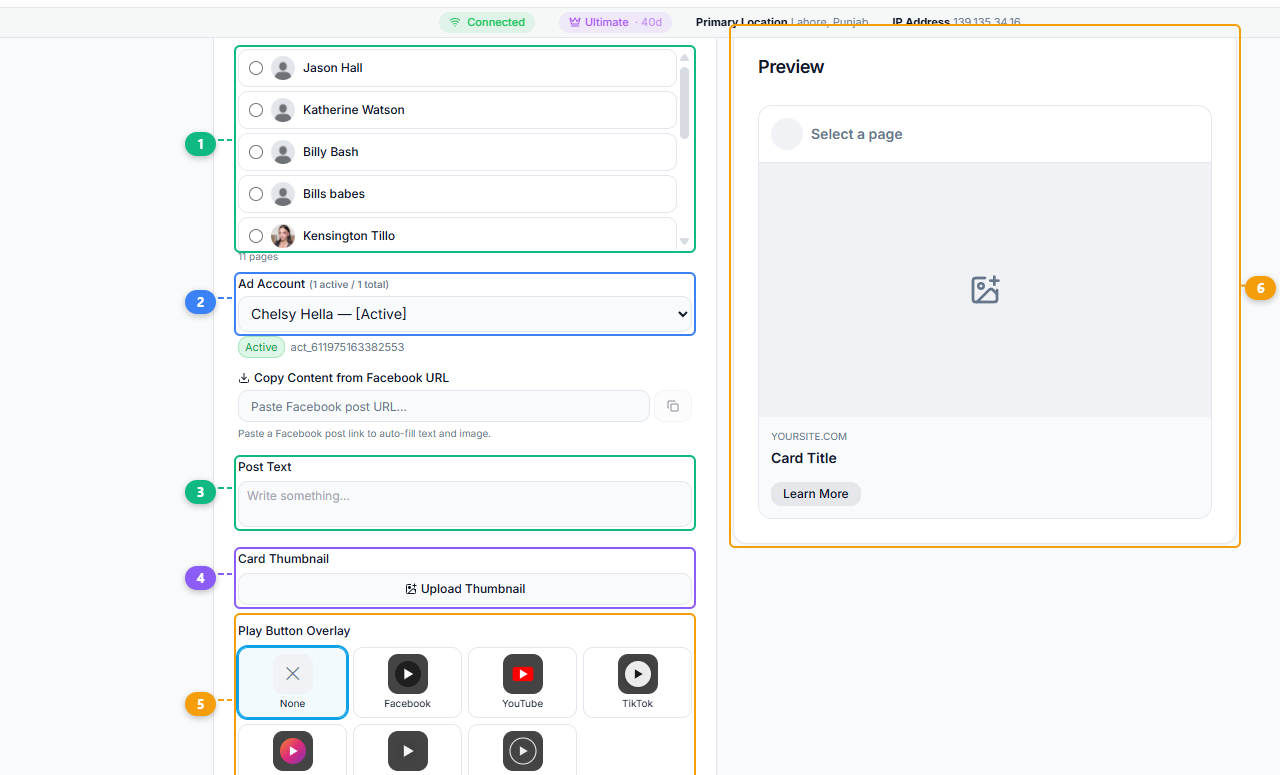
The Picture Link Post tool provides a form with live preview. Select your target page (1), choose your linked Ad Account (2), write your post text (3), upload a custom card thumbnail (4), optionally select a play button overlay style (5), and see the final card layout with title, domain, and CTA button in the preview panel (6).
- Open the FaceBot dashboard and navigate to the Picture Link Post tool.
- Select the Facebook Page where you want to publish.
- Upload your image. Use the highest quality image available — Facebook will handle compression, so starting with a high-resolution source produces the best result.
- Enter your destination URL.
- Write your post caption. Include a clear call to action.
- Preview the post to confirm the image and link display correctly.
- Publish immediately or schedule for later.
🚀 Ready to try Picture Link Post?
Post images with embedded clickable links
Try it Free Now — 24h Gold, 70+ Tools →Tips for Maximum Click-Through Rates#
Design images with intent. Since you control the image, design it to drive clicks. Include text overlays with the value proposition, use arrows or visual cues pointing toward the click area, or use imagery that creates curiosity about what is behind the link.
Match the image to the destination. Visual consistency between the Facebook post image and the landing page builds trust. If users click through and see a completely different visual style, it creates cognitive friction that increases bounce rates.
Write action-oriented captions. The image stops the scroll. The caption should convert the attention into a click. "See the full collection," "Read the complete guide," "Get your free trial" — tell users exactly what they get by clicking.
Test image orientations. Square images (1:1) and landscape images (1.91:1) perform differently in different feed contexts. Mobile feeds favor square images because they take up more screen space. Test both orientations to see which generates better click-through rates for your audience.
Use the tool for content that deserves custom visuals. Not every post needs a Picture Link Post. For quick link shares where Facebook's auto-preview is adequate, a standard link post is fine. Reserve the Picture Link Post for content where the visual presentation directly affects conversion — product launches, campaign anchors, high-value content.
For pages running consistent traffic-driving campaigns, this tool pairs well with the Bulk Page Composer for scaling content publishing across multiple pages.
Limitations#
The tool creates posts on pages you administer. The image you upload will be compressed by Facebook according to its standard image processing pipeline — this is unavoidable for any image uploaded to Facebook. Start with the highest resolution source to minimize visible quality loss.
The exact rendering of the image-link card may vary between desktop feeds, mobile feeds, and different mobile devices. Facebook controls the layout, and it occasionally adjusts how link cards display. The tool produces a consistent post format, but the visual rendering is ultimately Facebook's responsibility.
Frequently Asked Questions#
How is this different from just uploading a photo and putting a link in the caption?#
A photo with a link in the caption renders the URL as plain text — no link preview, no click card, no visual link indicator. The Picture Link Post embeds the link as a clickable card element, which produces significantly higher click-through rates and tells Facebook's algorithm that this is link-driving content.
What image dimensions work best?#
Facebook recommends 1200x630 pixels for link post images (1.91:1 aspect ratio). Square images (1080x1080) also work well, especially on mobile. Avoid tall portrait images as they may get cropped in the feed preview.
Can I track clicks from Picture Link Posts?#
Yes. Use UTM parameters in your destination URL to track traffic from these posts in Google Analytics or any analytics platform. FaceBot does not modify your URLs — whatever tracking parameters you include will pass through to the destination.
Does this work with video content?#
The Picture Link Post is specifically for static images with links. For video content with embedded links, FaceBot offers the Video With Link Post tool, which creates a similar hybrid format using video instead of a static image.
Can I schedule Picture Link Posts?#
Yes. The tool supports both immediate publishing and scheduling for future dates and times. Scheduled posts are published automatically at the time you set.
Conclusion#
The Picture Link Post tool gives page administrators what Facebook's native composer does not: full control over the image in a link post. For any page strategy that involves driving traffic to external destinations, the quality of the visual presentation directly affects click-through rates. FaceBot makes it straightforward to create posts that combine your best imagery with functional link embedding.
If your page publishes content that links to products, articles, landing pages, or any external destination, this tool produces consistently better-performing posts than either standard link posts or photo posts with URLs in the caption.
Try the Picture Link Post tool
Related reading: What Is Create BM Pages? Bulk Create Facebook Business Manager Pages, What Is the Picture Link Post Tool? Create Clickable Image Posts on Facebook, What Is IP Finder? Check Your IP Address, Location, and Connection Details and What Is Fake Share Pages? Boost Social Proof With Share Signals on Facebook.