What Is the Picture Link Post Tool? Create Clickable Image Posts on Facebook
When you share a link on Facebook, the platform generates a link preview card automatically. That card includes a small thumbnail, a headline, and a snippet of text pulled from the destination page. The problem is that these auto-generated previews are often visually weak -- the thumbnail is tiny, the headline gets truncated, and the overall appearance blends into the feed without catching attention.
A Picture Link Post is a different format entirely. It combines a full-size image with an embedded clickable link overlay, creating a post that looks like a standard image post but functions as a link post. The image takes up the full width of the feed. The link card sits below the image with a headline, description, and call-to-action. Users can click either the image or the link card to reach your destination URL.
This format outperforms standard link shares because the large image stops the scroll, while the link card beneath it provides context and a clear click target. FaceBot's Picture Link Post tool (also called One Card Picture) lets you create this format for any Facebook page in under a minute.
How Picture Link Posts Differ from Other Post Types#
Understanding where this format sits among Facebook's post types is important for choosing the right one.
Standard Link Share#
When you paste a URL into the Facebook composer, Facebook scrapes the destination page and generates a preview card. You have limited control over the thumbnail, headline, and description -- they come from the page's Open Graph tags. The image is small (often 1200x630 displayed at a fraction of that), and the entire card is a single click target.
Image Post with a Link in the Caption#
You can upload an image and type a URL in the caption text. The image displays at full size, but the URL appears as plain text. Users have to tap the link text to navigate, and Facebook's algorithm treats this as an image post, not a link post. This means the link gets less distribution priority than a native link format.
Picture Link Post (One Card Picture)#
This is the hybrid. You get the full-size image of an image post combined with the structured link card of a link share. The image is your custom creative -- not a scraped thumbnail. The link card below it uses your specified headline, description, and URL. Facebook treats this as a link post for distribution purposes, and the visual dominance of the large image drives higher click-through rates.
Carousel Post#
A carousel uses multiple cards, each with its own image and link. If you need to showcase several products or pages, a carousel post is the better choice. The Picture Link Post is for when you want one strong image driving traffic to one destination.
🚀 Picture Link Post
Post a single clickable image link
Try it Free Now — 24h Gold, 70+ Tools →Why Use a Picture Link Post?#
Higher Click-Through Rates#
The large image format draws more attention than a standard link preview. Studies across multiple social media management platforms consistently show that posts with custom images outperform auto-generated thumbnails by a significant margin. When the image is relevant and well-designed, users are more likely to stop scrolling and engage.
Full Creative Control#
With a standard link share, you are at the mercy of whatever Open Graph tags the destination page has configured. Many websites have poorly configured OG tags, resulting in blurry thumbnails, missing descriptions, or default placeholder images. The Picture Link Post gives you complete control over the image, headline, and description regardless of what the destination page provides.
Algorithm Advantage#
Facebook's algorithm treats posts with high early engagement favorably. A Picture Link Post combines visual appeal (which drives likes, comments, and shares) with link functionality (which drives clicks). This dual engagement signal can increase organic reach compared to a plain link share that generates clicks but fewer reactions.
Mobile Optimization#
On mobile devices, where the majority of Facebook usage occurs, a full-width image with a link card underneath creates a clean, tappable experience. The image fills the screen, and the call-to-action is immediately visible without scrolling. This is particularly effective for e-commerce, where reducing friction between seeing a product and clicking through to buy it directly impacts conversion rates.
Step-by-Step: Creating a Picture Link Post with FaceBot#
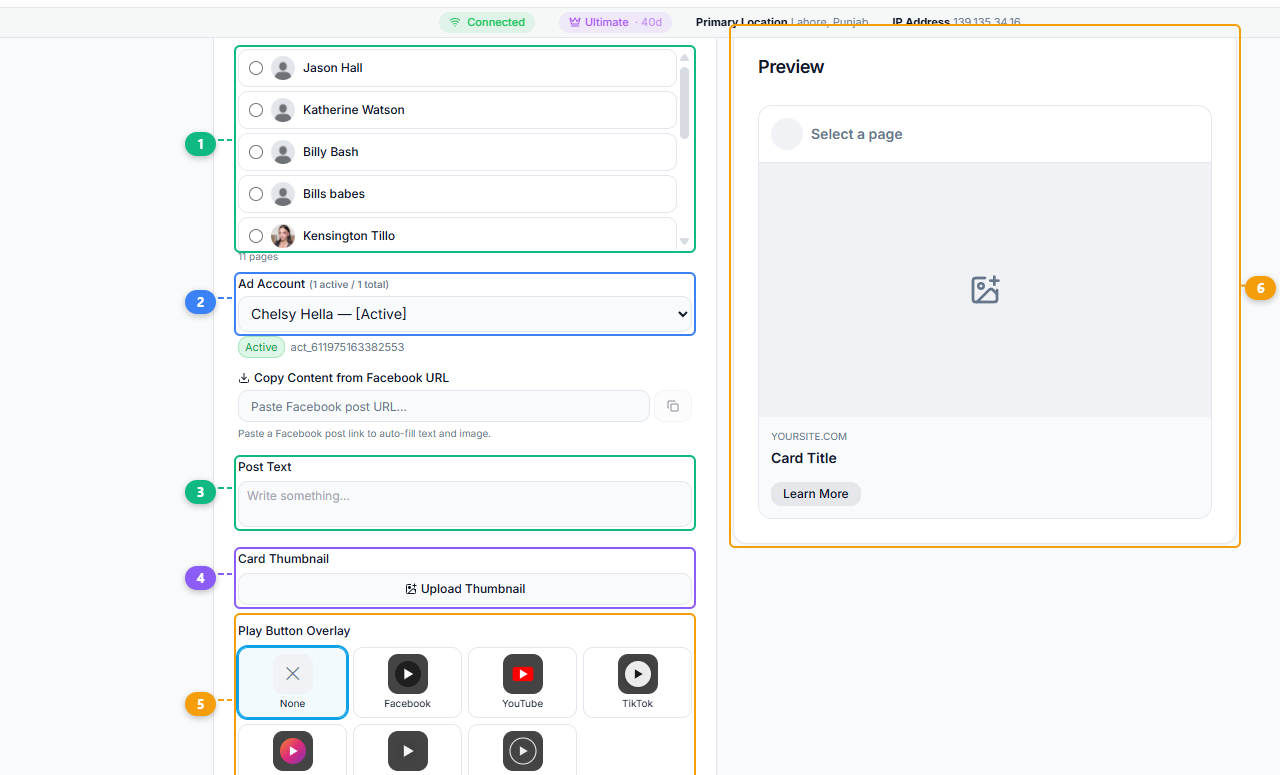
The Picture Link Post tool provides a form with live preview. Select your target page (1), choose your linked Ad Account (2), write your post text (3), upload a custom card thumbnail (4), optionally select a play button overlay style (5), and see the final card layout with title, domain, and CTA button in the preview panel (6).
Step 1: Open the Tool#
Navigate to the Picture Link Post (One Card Picture) tool in the Content Creation section of the FaceBot dashboard. Select the Facebook page you want to post to.
Step 2: Upload Your Image#
Choose the image that will serve as the main visual. Recommendations:
- Aspect ratio: 1.91:1 (1200x628 pixels) works best and matches Facebook's standard link image dimensions. Square images (1:1) also work but may display differently on desktop versus mobile.
- File size: Keep it under 8MB. Larger files work but upload more slowly.
- Content: Use a high-quality image that represents your destination content. If you are promoting a product, show the product. If you are promoting a blog post, use a custom graphic with the article headline.
- Text on image: Facebook no longer penalizes text-heavy images in organic posts (that restriction was for ads), but clean images with minimal text generally perform better.
If you need to process your image first -- adding overlays, adjusting for different platforms, or ensuring it does not trigger detection systems when repurposing content -- FaceBot has dedicated tools for that. The image anti-detection tool can help when working with visual content across multiple campaigns.
Step 3: Configure the Link Card#
Fill in the link card details:
- URL: The destination page users will land on when they click
- Headline: A concise, compelling title (keep it under 60 characters to avoid truncation)
- Description: Supporting text that appears below the headline (optional but recommended -- adds context and improves click-through)
- Call-to-Action: Select from available options like "Learn More," "Shop Now," "Sign Up," or "Book Now"
Step 4: Write Post Copy#
Add the text that appears above the image in the post body. This is where you set context, add a hook, or include hashtags. The post copy should complement the image and link card, not repeat them. Keep it conversational and give people a reason to click.
Step 5: Publish or Schedule#
Review the preview to confirm everything looks correct, then publish immediately or schedule for a specific time. FaceBot posts the content as a native Facebook post -- it appears in the feed exactly as if you had created it through Facebook's own publishing tools.
Best Practices for Picture Link Posts#
Match the Image to the Landing Page#
The image should set an accurate expectation for what users will find after clicking. A disconnect between the post image and the landing page increases bounce rates and can damage your page's credibility. If the landing page features a product, the image should feature that product.
Write Headlines That Complete the Image#
The headline in the link card should add information that the image alone does not convey. If the image shows a product, the headline might state the price or a key benefit. If the image shows a result, the headline might explain how to achieve it. Avoid repeating what is already visible in the image.
Test Image Variations#
Different images can produce dramatically different results even with the same link and copy. Run two or three variations of your best-performing posts with different images to identify what resonates with your audience. Track click-through rates, not just reactions.
Use for Time-Sensitive Promotions#
Picture Link Posts are particularly effective for limited-time offers, flash sales, and event promotions. The large image creates urgency visually, and the link card provides a clear path to action. Pair this with direct language in your post copy: deadlines, quantities remaining, or exclusive access.
🚀 Ready to try Picture Link Post?
Post a single clickable image link
Try it Free Now — 24h Gold, 70+ Tools →Who Should Use This Tool?#
E-commerce sellers who want to showcase a product with a direct link to the product page. The format is essentially a mini ad without spending on Facebook Ads.
Content marketers promoting blog posts, guides, or lead magnets. The custom image ensures visual consistency with your brand, and the link card drives readers to the content.
Local businesses advertising events, services, or seasonal promotions to their page followers. A professional-looking post with a clear call-to-action converts followers into customers.
Affiliate marketers who need to drive clicks to specific landing pages. The Picture Link Post maximizes the visual real estate available for promoting affiliate offers.
For a broader overview of all content creation capabilities available, see the complete guide to Facebook content creation.
Limitations#
- Pages only. Picture Link Posts are created for Facebook pages, not personal profiles or groups. This is a Facebook platform restriction, not a tool limitation.
- Single image, single link. This format supports one image and one destination URL. If you need multiple images or links, use the carousel format instead.
- Image quality matters. A low-quality or irrelevant image will underperform regardless of how good your copy and link are. The format amplifies good creative and equally amplifies bad creative.
- Link card display can vary. Facebook occasionally changes how link cards render on mobile versus desktop. Always preview your post on both before publishing to ensure the headline and description display as intended.
Frequently Asked Questions#
Can I edit the link card after publishing?#
No. Once a Picture Link Post is published on Facebook, you can edit the post text (caption) but not the link card details (image, headline, description, URL). If the link card is wrong, you need to delete the post and create a new one with the correct details.
Does this work for Facebook groups?#
No. The Picture Link Post format using the One Card Picture tool is designed for Facebook pages. Groups support standard link shares and image posts but do not support the structured link card format that this tool creates.
How is this different from boosting a post with an image?#
Boosting a post turns an organic post into a paid ad. The Picture Link Post creates an organic post that uses the same visual format as many ads -- large image with a link card -- but without spending money on distribution. You can boost a Picture Link Post after publishing it if you want to add paid reach on top of organic distribution.
What image size should I use?#
1200x628 pixels (1.91:1 ratio) is the recommended size. Facebook supports other dimensions, but this ratio ensures the image fills the link card space without cropping. Square images (1080x1080) work but will have horizontal bars on desktop.
Can I use a GIF instead of a static image?#
Facebook does not support animated GIFs in the link card image format. If you want motion in your post, consider using the image-to-video converter to turn your image into a short video, then post it as a video post with a link in the caption.
Conclusion#
The Picture Link Post format sits in a valuable gap between standard link shares and full image posts. It gives you the visual dominance of an image post with the click-driving structure of a link share. FaceBot's One Card Picture tool makes creating this format straightforward -- upload an image, configure the link card, publish.
If your goal is driving traffic from Facebook to an external page, and you want that traffic to come from visually compelling posts rather than small link previews, this is the tool to use.
Create your first Picture Link Post with FaceBot