What Is Image to Video Converter? Turn Static Images Into Engaging Video Posts
Video posts on Facebook consistently outperform static images in reach, engagement, and time spent viewing. Facebook's own algorithm has made this clear for years: video content gets priority placement in feeds, longer view times, and higher interaction rates. The problem is that most businesses and creators have libraries full of images — product photos, infographics, promotional banners, event flyers — but lack the time, tools, or skills to produce video content from scratch.
The Image to Video Converter in FaceBot bridges that gap. It takes your existing static images and transforms them into video posts with motion, transitions, and timing — ready to publish directly to Facebook. No video editing software, no rendering queues, no learning curve.
What Does the Image to Video Converter Do?#
At its core, the tool converts one or more static images into a video file suitable for Facebook posting. It applies motion effects — pans, zooms, fades, transitions — to your images so the output reads as a video to both Facebook's algorithm and your audience.
This is not the same as uploading an image as a slideshow. Facebook's native slideshow feature has severe limitations: low resolution output, minimal control over timing, and inconsistent rendering across devices. The Image to Video Converter produces an actual video file that Facebook treats identically to any other video upload.
Key capabilities:
- Single image to video — apply zoom, pan, or Ken Burns-style motion to a single image
- Multiple images to video — combine several images into a sequenced video with transitions
- Custom duration control — set how long each image appears and the overall video length
- Transition effects — smooth fades, slides, and dissolves between images
- Output optimized for Facebook — correct aspect ratios, resolution, and encoding for feed, story, and reel placements
- No watermarks — the output file is clean and ready for professional use
- Fast processing — conversion happens in seconds, not minutes
The tool handles the technical complexity that makes video creation a bottleneck. Facebook requires specific codecs, aspect ratios, and file sizes for optimal video delivery. The converter handles all of those constraints automatically.
🚀 Image to Video
Turn static images into scroll-stopping videos
Try it Free Now →Why Video Outperforms Images on Facebook#
The data behind this is not ambiguous. Multiple studies and platform reports confirm the performance gap:
Algorithmic preference. Facebook's feed algorithm weights video content more heavily than static images. Videos appear higher in feeds, reach more of your followers organically, and are more likely to be shown to non-followers through recommendations.
Engagement metrics. Video posts generate 1.5 to 3 times more comments than image posts on average. They also receive more shares, which is the most valuable engagement type for organic reach expansion.
Time on content. A static image gets glanced at for 1-2 seconds. A video — even a short one — holds attention for 5-15 seconds. That longer dwell time signals to Facebook's algorithm that the content is worth showing to more people.
Autoplay behavior. Videos autoplay in the feed. A static image sits passively. A video with motion immediately captures peripheral attention as users scroll, increasing the chance of a stop-and-watch moment.
Reel and Story eligibility. Facebook Reels and Stories are video-first formats. Static images in Stories get minimal engagement compared to video Stories. Converting your images to video unlocks these high-visibility placements.
The conversion is not about tricking an algorithm. It is about meeting your audience where their attention actually goes — and in 2026, that attention is on moving content.
Who Should Use Image to Video Converter?#
E-Commerce and Product Businesses#
Product photography is expensive. Most businesses invest heavily in high-quality product shots for their catalogs and websites. The Image to Video Converter lets you extract additional value from those assets by turning them into video ads and organic posts without a reshoot.
A single product image with a slow zoom and professional transition can outperform the same image posted statically. A sequence of three product angles with smooth transitions creates a product showcase video in under a minute.
Social Media Managers#
Managing multiple clients means producing high volumes of content on tight deadlines. The converter eliminates the production bottleneck for video content. When a client provides brand images, event photos, or promotional graphics, you can turn them into video posts immediately — no handoff to a video editor, no revision cycles, no delays.
Real Estate and Travel#
Property photos, destination shots, and location imagery are inherently visual. A slow pan across a property interior, or a sequence of travel destination images with smooth transitions, creates an immersive viewing experience that a static gallery cannot match. These industries already have the images — they just need the motion.
Event Promotion#
Event flyers, speaker photos, venue shots, and promotional graphics can be converted into short video teasers for Facebook event promotion. A 10-second video ad built from existing event assets generates more RSVPs and ticket clicks than the same assets posted as images.
Content Creators and Influencers#
Not every piece of content justifies a full video production. Between major video posts, the converter lets you maintain a consistent video presence using photos, screenshots, graphics, and other visual assets you already have.
How to Use Image to Video Converter in FaceBot#
The workflow is straightforward. No video editing experience is required.
Step 1: Prepare Your Images#
Select the images you want to convert. For best results, use images that are at least 1080 pixels wide. The tool accepts standard formats — JPEG, PNG, and WebP. If you are combining multiple images, arrange them in the order you want them to appear in the video.
Step 2: Open the Tool#
Navigate to the Image to Video Converter in the Content Creation suite. Upload your image or images.
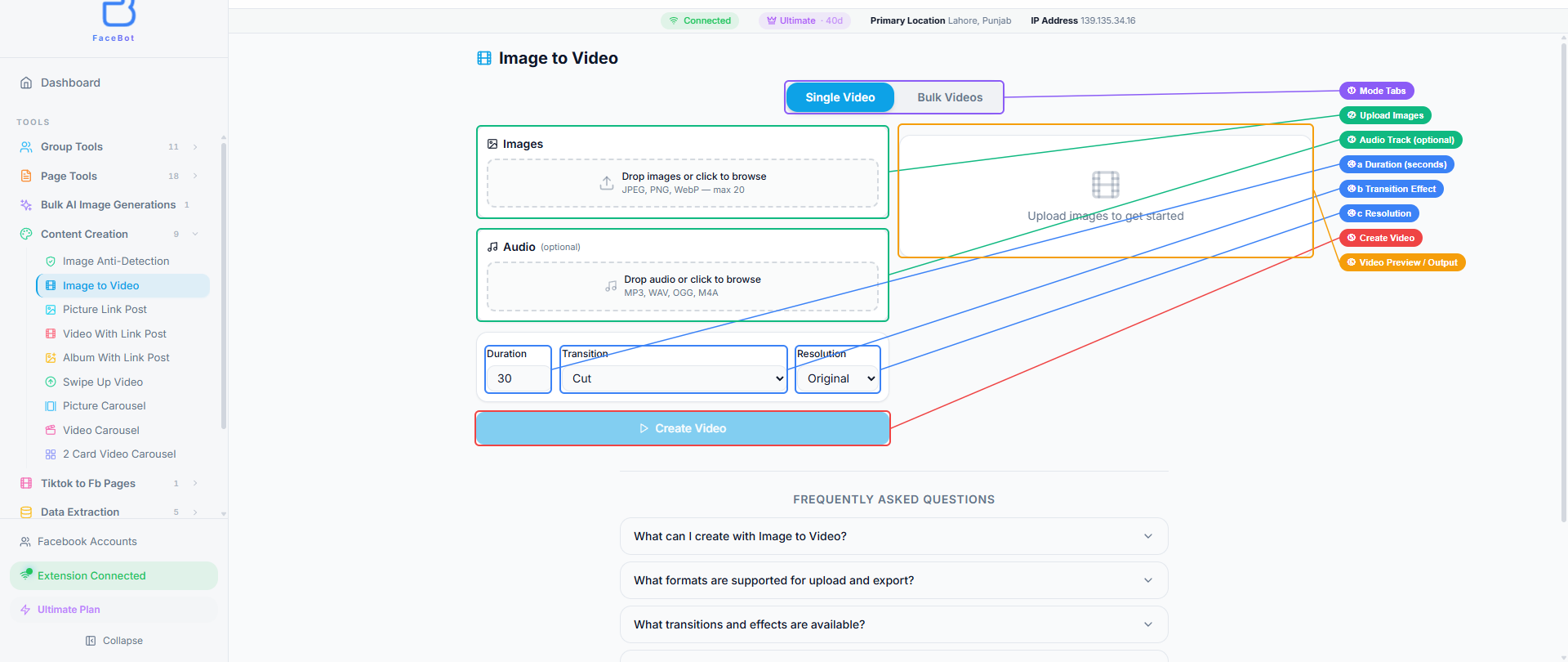
The interface includes the image upload area on the left, an optional audio track upload below it, and video configuration settings — Duration (in seconds), Transition effect (Cut, Fade, Slide, etc.), and Resolution. The right panel shows the video preview once processing is complete.
Step 3: Configure Settings#
Choose your video parameters:
- Duration — how long the total video should be, or how long each image should display
- Transition style — fade, slide, dissolve, or cut between images
- Motion effect — zoom in, zoom out, pan left/right, or Ken Burns (combined pan and zoom)
- Aspect ratio — square (1:1) for feed, vertical (9:16) for Stories and Reels, landscape (16:9) for standard video
Step 4: Generate and Download#
Click convert. The tool processes your images and produces a video file optimized for Facebook. Download it directly, then upload it to Facebook as a standard video post, Story, or Reel.
Practical Tips for Better Results#
Use high-resolution source images. The converter cannot add detail that is not in the original. Starting with 1080p or higher images ensures the output video is sharp on all devices, including large desktop screens.
Keep it short. The optimal length for Facebook video posts is 15-30 seconds for feed content and under 15 seconds for Stories. Longer is not better — attention drops sharply after the first 10 seconds.
Match transitions to your brand tone. Slow fades and gentle zooms read as premium and professional. Quick cuts and slides read as energetic and urgent. Choose transitions that align with what you are promoting.
Lead with your strongest image. The first frame of the video is what appears as the thumbnail in the feed and what plays first on autoplay. Put your most compelling image first.
Add text and CTAs before conversion. If your images include text overlays, headlines, or call-to-action buttons, add those to the images in your normal design tool before uploading. The converter preserves everything in the image exactly as-is.
Test one post before batching. Convert a single image, post it, and check how it renders on mobile and desktop. Once you are confident in the settings, apply the same configuration to your batch.
🚀 Ready to try Image to Video?
Turn static images into scroll-stopping videos
Try it Free Now →Image to Video vs. Native Facebook Slideshow#
Facebook offers a built-in slideshow creation feature. Here is how it compares:
| Feature | FaceBot Image to Video | Facebook Slideshow |
|---|---|---|
| Output format | Actual video file (MP4) | Slideshow (limited format) |
| Motion effects | Zoom, pan, Ken Burns | Basic crossfade only |
| Duration control | Per-image and total | Limited presets |
| Aspect ratio options | 1:1, 9:16, 16:9 | Fixed |
| Resolution | Up to 1080p+ | Often downgraded |
| Downloadable output | Yes — keep the file | No — lives on Facebook only |
| Algorithm treatment | Treated as video | Treated as slideshow (lower priority) |
| Reusable on other platforms | Yes — standard MP4 | No |
The key difference is algorithmic treatment. Facebook treats slideshow posts differently from video posts in feed ranking. An actual video file uploaded as a video post gets the full benefit of video-priority ranking. A slideshow does not.
How to Get Started#
The Image to Video Converter is available inside FaceBot's Content Creation suite. Upload your images, configure the motion and timing, and produce Facebook-ready video content in seconds.
If you are managing a content calendar that calls for daily or weekly video posts, the converter eliminates the production bottleneck. Your existing image library becomes a video library without any additional photography or videography investment.
For a broader view of all the content creation tools available, including carousels, link cards, and AI-generated images, see the complete guide to Facebook content creation.
Conclusion#
Static images are no longer enough to compete for attention in Facebook feeds. The algorithm prioritizes video, and most businesses already have the image assets they need — they just lack a fast way to convert them. FaceBot's Image to Video Converter bridges that gap in seconds, turning product photos, infographics, and promotional images into video posts that earn more reach and engagement.
If you are serious about scaling your Facebook content output without hiring a video production team, this tool removes the biggest bottleneck. Combine it with bulk posting and carousel tools in FaceBot's content creation suite for a complete video-first strategy built on assets you already own.
→ Try FaceBot's social media tools free
Related reading: Content Repurposing.
Frequently Asked Questions#
Q: What image formats does the converter accept?#
The tool accepts JPEG, PNG, and WebP images. For best results, use images with a minimum resolution of 1080 pixels on the longest side. Higher resolution source images produce sharper output video, especially when zoom or pan effects are applied.
Q: Can I add music or audio to the video?#
The Image to Video Converter focuses on the visual conversion — turning images into video with motion effects. For adding audio tracks, you would add music after downloading the output file using a standard video editor, or use Facebook's built-in music feature when posting the video.
Q: How long should my image-to-video posts be?#
For Facebook feed posts, 15-30 seconds performs best. For Stories and Reels, keep it under 15 seconds. Shorter videos have higher completion rates, and completion rate is a key signal Facebook uses to determine whether to show your video to more people.
Q: Will the output video have a watermark?#
No. The converted video is clean with no watermarks, branding, or overlays added by the tool. The output file is ready for professional use, paid advertising, and client deliverables.
Q: Can I use the output video for Facebook Ads?#
Yes. The output is a standard MP4 file that meets Facebook's ad specifications. You can upload it directly to Ads Manager as a video creative. Many advertisers use this workflow to produce video ad variations from existing product photography without commissioning separate video production.