
What Is Viral Page Posts Finder? Analyze Any Facebook Page's Top Content
Every successful Facebook Page has a handful of posts that dramatically outperform the rest. A video that got 50x the average shares. A photo post that sparked hundreds of comments when most posts get five. A simple text post that went viral while polished graphics got ignored.
Finding these outlier posts — and understanding why they worked — is one of the most valuable things you can do for your own page strategy. But Facebook does not make this easy. You cannot sort another page's posts by engagement. You cannot filter for their most-shared content. You have to scroll manually through their feed, guessing at what performed well based on visible reaction counts.
Viral Page Posts Finder is a FaceBot tool that solves this problem directly. Point it at any public Facebook Page and it returns the page's posts ranked by engagement — giving you a clear picture of what content actually resonated with that page's audience.
What Does Viral Page Posts Finder Do?#
Viral Page Posts Finder analyzes the posts on any public Facebook Page and sorts them by engagement metrics. Here is what it provides:
Engagement ranking. Posts are sorted by total engagement — reactions, comments, and shares combined — so the top-performing content surfaces immediately.
Metric breakdown. Each post displays its individual counts for reactions, comments, shares, and total engagement. You see not just which posts performed best overall, but which ones drove shares versus comments versus reactions.
Post type identification. The tool identifies whether each post is a text post, photo, video, link share, event, or other format. This lets you spot patterns in which format drives the most engagement for a given page.
Content preview. You see the actual post content — text, images, and links — without having to open each post individually on Facebook.
Date context. Every post includes its publish date, so you can identify whether a page's viral content is recent or historical.
🚀 Viral Posts Finder
See any page's most viral posts instantly
Try it Free Now — 24h Gold, 70+ Tools →Who Benefits from This Tool?#
Competitor Analysis#
The most common use case. If you run a fitness page and want to know what content works for the top fitness pages in your niche, Viral Page Posts Finder shows you their actual best-performing posts — not what they claim works in their courses or ebooks, but what their audience actually engaged with.
Content Strategy Development#
Starting a new page and not sure what to post? Analyze five to ten established pages in your niche. The patterns that emerge — specific topics, formats, posting styles, caption lengths — give you a data-backed starting point instead of guessing.
Client Pitches for Agencies#
Agencies pitching a new client can use Viral Page Posts Finder to analyze the client's existing page alongside competitor pages. Showing a prospect "here is your top content versus your competitor's top content" is a powerful pitch tool backed by real data.
Trend Identification#
Some content themes are evergreen; others spike seasonally. Analyzing a page's viral posts over time reveals which topics consistently drive engagement versus which were one-time spikes tied to news events or trends.
Content Repurposing Planning#
If you manage your own page, running Viral Page Posts Finder on your own content reveals which posts are worth repurposing. A post that went viral a year ago can be updated, reformatted, and republished — using FaceBot's Page Content Cloner or Bulk Page Composer to distribute the updated version.
How to Use Viral Page Posts Finder — Step by Step#
Step 1: Open the Tool#
Navigate to the FaceBot dashboard and select Viral Page Posts Finder (listed under "Posts Analyze" in the Page Management section).
Step 2: Enter the Target Page#
Provide the Facebook Page URL or Page ID you want to analyze. This works on any public Facebook Page — you do not need to be an admin.

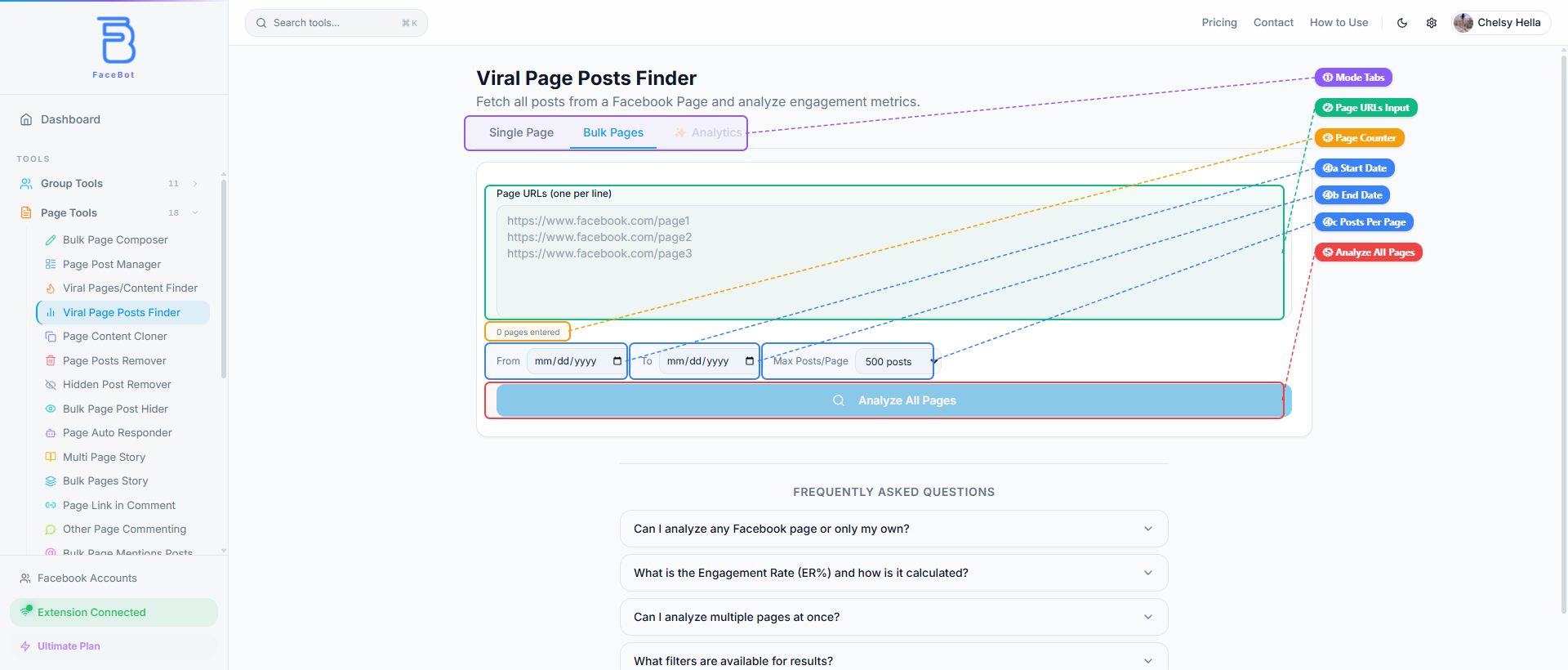
The interface offers three modes: Single Page for analyzing one page at a time, Bulk Pages for analyzing multiple pages in a single run, and Analytics for deeper trend analysis.
For bulk analysis, switch to the Bulk Pages tab and enter multiple page URLs — one per line. Set your date range and posts-per-page limit, then click Analyze All Pages.
Step 3: Run the Analysis#
The tool fetches the page's posts and calculates engagement metrics for each one. Depending on the number of posts, this may take a few seconds to a minute.
Step 4: Review Results#
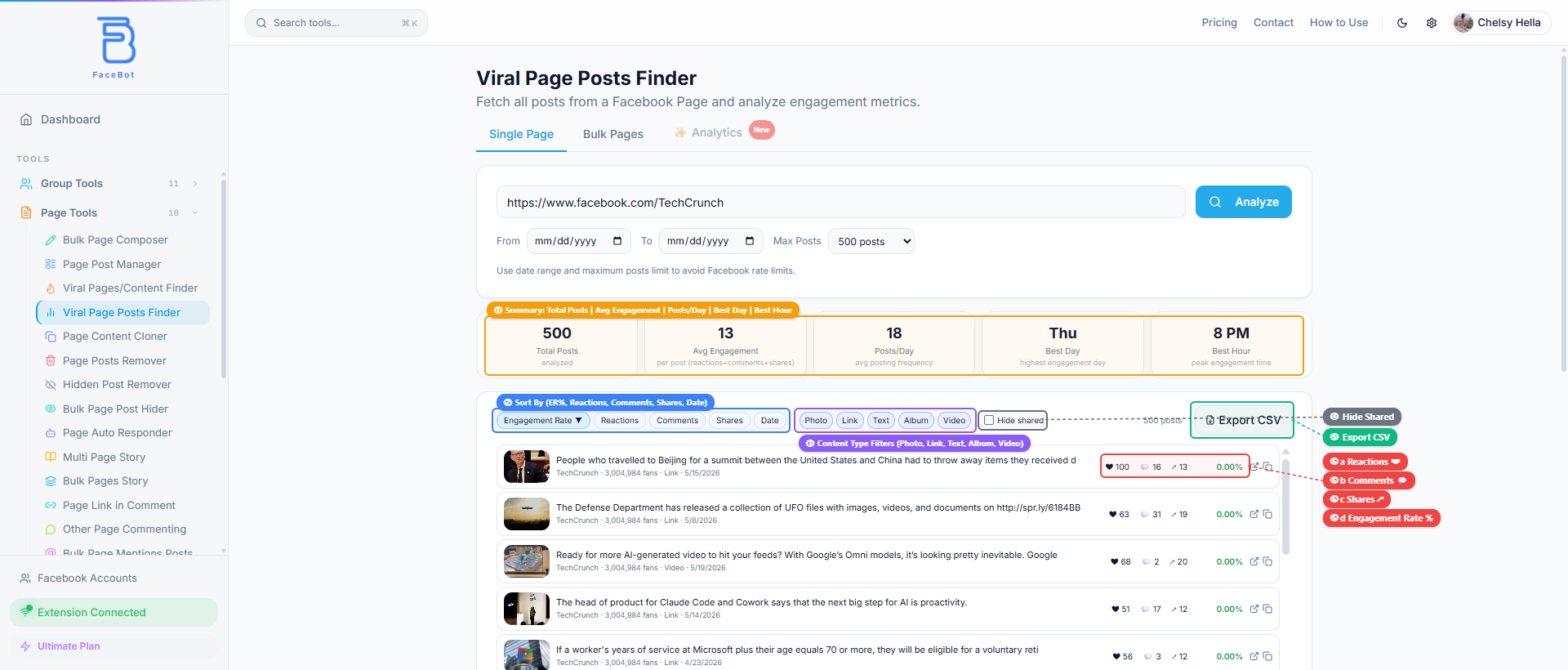
Posts are displayed ranked by engagement, with summary analytics at the top showing Total Posts analyzed, Average Engagement per post, Posts/Day frequency, Best Day for engagement, and Best Hour for peak activity. Below the summary, you can sort results by Engagement Rate, Reactions, Comments, Shares, or Date — and filter by content type (Photo, Link, Text, Album, Video). Each post row shows its reaction count, comment count, share count, and calculated engagement rate percentage.
Review the top performers first:
- What format are they? Video? Photo? Text?
- What topics do they cover?
- How long are the captions?
- What time or day were they published?
- Which engagement type dominates — shares, comments, or reactions?
Step 5: Extract Insights#
The raw data is useful, but the real value is in the patterns you identify:
- If 8 out of 10 top posts are videos, that page's audience prefers video.
- If the top posts all ask questions in the caption, engagement is driven by conversational prompts.
- If viral posts cluster on certain days, timing matters for that audience.
Document these patterns and apply them to your own content strategy.
Practical Tips for Getting Maximum Value#
Analyze at least five competitor pages, not just one. A single page might have outlier results driven by a specific event or paid promotion. Patterns that appear across multiple pages are more reliable signals.
Pay attention to engagement type, not just total numbers. A post with 10,000 reactions but 20 shares has a different quality than one with 2,000 reactions and 5,000 shares. Shares indicate the content was compelling enough for people to associate their name with it — a stronger signal of virality.
Filter out paid content mentally. Some "viral" posts on competitor pages were actually boosted with ad spend. Look for indicators: posts with unusually high reach compared to the page's follower count, or engagement that is disproportionately reactions-heavy (a common pattern for boosted content). Organic virality tends to have a more balanced reaction-to-share ratio.
Look at the failures too. The posts at the bottom of the engagement ranking are equally informative. They show you what the page tried that did not work — saving you from making the same mistakes.
Combine with the Posts Remover for your own page. After analyzing what works in your niche, audit your own page's content. Use Page Posts Remover to clean up your underperforming posts and replace them with content aligned to the winning patterns you discovered.
Revisit quarterly. Audience preferences shift. A format that dominated engagement six months ago may have been overtaken by a new trend. Regular analysis keeps your strategy current.
What Viral Page Posts Finder Does Not Do#
Being upfront about limitations:
- It does not reveal paid versus organic reach. Facebook does not expose this data publicly. You cannot definitively know whether a high-engagement post was boosted with ad spend.
- It analyzes public pages only. Private or restricted pages that limit content visibility to followers only will not return complete results.
- It does not predict virality. The tool shows you what already went viral. It cannot guarantee that replicating the format or topic will produce the same result on your page.
- It does not provide audience demographic data. You see engagement numbers, not who engaged. Facebook's privacy controls prevent third-party tools from accessing commenter or reactor demographics.
🚀 Ready to try Viral Posts Finder?
See any page's most viral posts instantly
Try it Free Now — 24h Gold, 70+ Tools →Try Viral Page Posts Finder#
Want to see what is actually working on any Facebook Page? Run an analysis now.
From Competitor Winners to Your Own Content Calendar#
Finding the top-performing posts on pages in your niche is research; the value comes from converting that research into a steady stream of your own content. The workflow that turns competitor winners into a calendar:
- Pull the top posts across several pages in your niche. Not one competitor — a handful. Patterns that repeat across multiple pages are the safest bets; a single page's hit might be a fluke.
- Extract the pattern, not the post. For each winner, note the angle (the promise or hook), the format (video, image, carousel, text), and the topic. Those three transfer; the specific words and images don't.
- Cluster into content pillars. Group the recurring angles into three or four themes. These become your repeatable content buckets — the slate you fill instead of inventing posts from scratch.
- Fill a calendar from the pillars. Assign pillars to days or slots, and batch-write originals that follow the proven patterns with your own substance.
- Model, never copy. Recreate the structure with your own examples, data, and voice. Lifting a competitor's post verbatim performs poorly and risks removal; building on the proven pattern is what earns the engagement.
- Refresh monthly. Niches shift. Re-run the finder periodically so your pillars reflect what's working now, not last quarter.
The result is a content calendar grounded in evidence rather than guesswork — every slot filled with a format and angle the market has already rewarded. Pair it with the Bulk Page Composer to publish the calendar across your pages, and Page Content Cloner to adapt (not copy) the strongest source material.
Frequently Asked Questions#
Can I analyze any Facebook Page, even if I am not an admin?#
Yes. Viral Page Posts Finder works on any public Facebook Page. You do not need to be an admin, editor, or even a follower. As long as the page's posts are publicly visible, the tool can analyze them. Private or restricted pages may return limited results.
How far back does the analysis go?#
The tool analyzes posts going back as far as the page's public post history allows. For pages with very long histories — thousands of posts over many years — the analysis may focus on the most recent posts to provide timely and relevant results. You can typically expect coverage of several months to a few years of content.
Does this tool work on my own page too?#
Absolutely. Running Viral Page Posts Finder on your own page is one of the most practical uses. It reveals which of your posts outperformed the rest, helping you understand what your specific audience responds to. This is particularly useful for identifying evergreen content worth repurposing.
Is analyzing competitor pages ethical?#
Analyzing publicly available content is standard practice in marketing and business intelligence. Every post on a public Facebook Page is visible to anyone who visits that page. Viral Page Posts Finder simply organizes and ranks that publicly accessible information. It does not access private data, scrape personal profiles, or bypass any privacy settings.
Can I export the results?#
Yes. The tool includes an Export CSV button that downloads all analyzed posts with their engagement metrics — reactions, comments, shares, engagement rate, post type, and date — into a spreadsheet you can use for reporting, team presentations, and content calendars.
Conclusion#
Content strategy without data is guesswork. Viral Page Posts Finder replaces guesswork with evidence by showing you exactly which posts performed best on any Facebook Page. Whether you are reverse-engineering a competitor's strategy, auditing your own page, or building a content plan for a new client, the tool provides the engagement data that Facebook's native interface deliberately hides. Pair it with FaceBot's publishing tools — Bulk Page Composer for distribution and Page Content Cloner for inspired content creation — and you have a complete discover-create-publish workflow.
Related reading: What Is Video Card Post? Create Link Preview Posts with Video on Facebook.