What Is Page Post Manager? Manage All Facebook Page Posts From One Dashboard
Managing posts on a Facebook Page through the native interface means navigating to the page, scrolling through the feed or opening the Activity Log, and working with one post at a time. For a page with dozens of posts, this is manageable. For a page with thousands of posts — or for someone managing multiple pages with thousands of posts each — Facebook's native tools become a bottleneck.
You cannot sort posts by engagement across your entire post history. You cannot filter by post type across multiple pages simultaneously. You cannot quickly compare the performance of this week's posts against last month's posts without manually clicking through calendar views. The native interface was designed for page visitors, not for page managers operating at scale.
The Page Post Manager in FaceBot consolidates post management into a single dashboard. View, filter, sort, and take action on all posts across all your Facebook Pages from one interface.
What Does the Page Post Manager Do?#
The tool provides a unified management interface for all posts across your administered Facebook Pages. Here is what it offers:
Cross-page post view. See posts from all your pages in one list. No switching between pages to compare content or check performance. Every page's posts are accessible from the same dashboard.
Advanced filtering. Filter posts by date range, post type (text, image, video, link, album), engagement level, and page. Combine filters to create precise views — for example, "all video posts from Page A in the last 30 days with more than 100 reactions."
Sorting. Sort posts by date (newest/oldest), engagement (highest/lowest), comments, shares, or reactions. This instantly surfaces your best and worst performing content without manual comparison.
Post preview. See the full content of each post — text, media, link preview — directly in the management view. You do not need to click through to Facebook to review what a post contains.
Bulk actions. Select multiple posts and take action on them: hide, delete, or export. This connects directly to the functionality of tools like the Page Posts Remover and the Bulk Page Post Hider, but from within a unified management context.
Engagement metrics at a glance. Each post displays its reaction count, comment count, share count, and total engagement. You can identify performance patterns across your content library without exporting to spreadsheets.
🚀 Page Post Manager
Full control over every post from one dashboard
Try it Free Now — 24h Gold, 70+ Tools →Why a Dedicated Post Manager Matters#
Facebook's Native Tools Are Not Built for Scale#
Facebook's Page Activity Log is functional for reviewing individual posts and their history. But it was not designed for bulk operations or cross-page management. It lacks the filtering depth, sorting capabilities, and multi-page view that page managers at scale need.
Meta Business Suite improves on this somewhat with its content calendar and post scheduling features. But even Business Suite does not provide the kind of granular, filterable, sortable post library view that the Page Post Manager offers. Questions that native tools cannot answer quickly:
- Which of my 500 posts this quarter had the highest engagement?
- How many video posts did I publish across all pages last month?
- Which posts older than 90 days still drive consistent traffic?
- What is my average engagement rate by post type per page?
- Which pages are underperforming relative to their follower count?
The Page Post Manager answers all of these in seconds through filtering and sorting, replacing hours of manual spreadsheet work.
Content Audits Become Practical#
Regular content audits — reviewing your post library to identify what is working, what is underperforming, and what needs to be removed — are a best practice that most page managers skip because the manual process is too slow. The Page Post Manager makes content audits a 20-minute exercise instead of a multi-hour ordeal. Filter for posts older than a certain date, sort by engagement, and quickly identify the bottom 10% for review.
Performance Patterns Become Visible#
When all your posts are in one sortable, filterable view, patterns emerge. You might discover that video posts consistently outperform image posts on one page but not another. Or that posts published on Tuesday mornings get double the engagement of posts published on Friday evenings. These insights are impossible to extract from Facebook's native interface without exporting data and building spreadsheets.
Multi-Page Management Stops Being Chaotic#
Agencies and businesses managing 5, 10, or 50 pages need to monitor all of them. Switching between pages in Facebook's interface to check post performance is a context-switching nightmare. The Page Post Manager puts every page's posts in one view, making cross-page management a coherent workflow rather than a juggling act.
Practical Use Cases#
Weekly Performance Reviews#
Every Monday, open the Page Post Manager, filter for posts published in the last 7 days across all your pages, and sort by engagement. In five minutes, you know which posts performed best, which underperformed, and what content types are trending up or down.
Content Cleanup Campaigns#
Filter for posts older than 12 months with engagement below a threshold. Review the results and decide which to hide, which to delete, and which to keep. The Page Post Manager lets you see the scope of the cleanup before committing to any action.
Cross-Page Content Comparison#
If you manage multiple pages in the same niche, compare post performance across pages. Identify whether a content approach that works on one page could be replicated on others. Sort by shares to find your most viral content, then analyze what those posts have in common.
Client Reporting#
For agencies, the Page Post Manager provides the raw data for client reports. Filter by date range and page, sort by key metrics, and export the data. This is faster and more comprehensive than pulling data from Facebook Insights manually.
Identifying Content for Repurposing#
Sort your post library by engagement to find your all-time top performers. These posts are candidates for repurposing — turning a popular text post into a video, refreshing a popular article share with updated information, or reposting seasonal content that performed well last year.
How to Use the Page Post Manager#
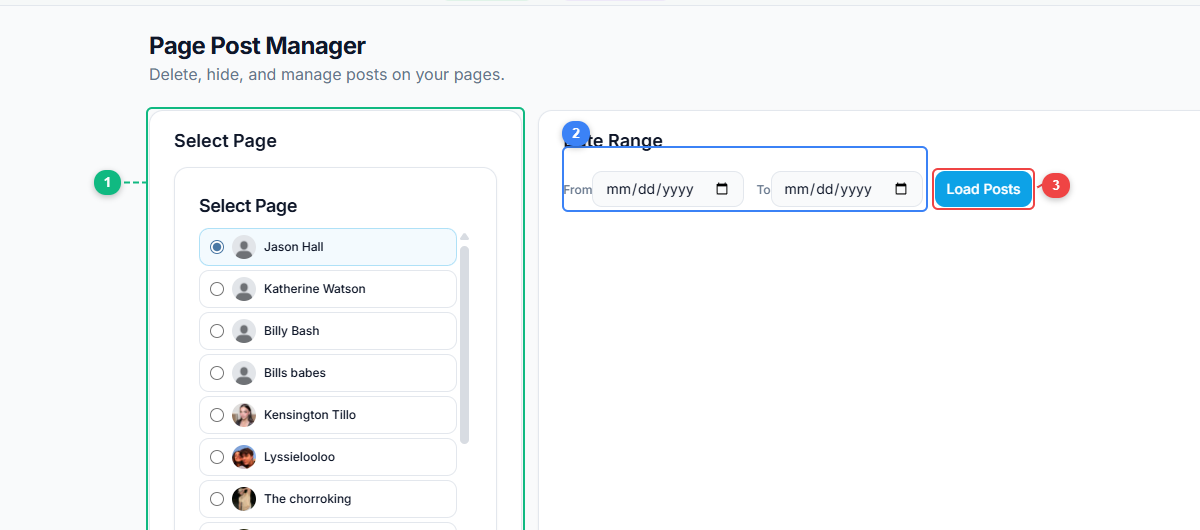
The Page Post Manager has a clean two-panel layout. Select which page to manage from your full page list (1), set a date range to filter posts by publication date (2), and click Load Posts (3) to pull in all matching posts for review and bulk actions.
- Open the FaceBot dashboard and navigate to the Page Post Manager.
- Select which pages to include in your view — all pages or specific ones.
- Apply filters to narrow the post list: date range, post type, engagement thresholds.
- Sort the results by the metric most relevant to your task.
- Review posts in the management view. Click into individual posts for full previews.
- Take bulk actions on selected posts: hide, delete, export, or flag for follow-up.
- Use the insights from your review to inform your upcoming content strategy.
🚀 Ready to try Page Post Manager?
Full control over every post from one dashboard
Try it Free Now — 24h Gold, 70+ Tools →Tips for Effective Post Management#
Set up regular review sessions. Do not wait until your page has a problem to review your posts. Weekly or bi-weekly post reviews using the Page Post Manager keep you informed about content performance and prevent the accumulation of outdated content.
Use engagement thresholds for cleanup decisions. Define a minimum engagement threshold for your page based on your average. Posts that fall significantly below that average are candidates for hiding or removal. The Page Post Manager makes it easy to identify these underperformers.
Track post type performance over time. Use the post type filter to compare how different content formats perform on your page. If videos consistently outperform images, that informs your content production priorities. If link posts underperform but generate the most website traffic, the tradeoff is worth knowing about.
Combine with content creation tools. The Page Post Manager tells you what has worked and what has not. Use those insights to guide content creation with tools like the Image to Video Converter for formats that your data shows perform well.
Export data for deeper analysis. While the in-dashboard view handles most management tasks, exporting post data to a spreadsheet enables deeper analysis — trend graphs, audience segment comparisons, and long-term performance tracking.
Limitations#
The Page Post Manager works with pages you administer. You cannot view or manage posts on pages where you do not have admin access. The tool displays posts that are accessible through Facebook's API, which includes published, scheduled, and hidden posts.
Real-time engagement data may have a slight delay compared to what Facebook's native interface shows. This is inherent to how Facebook's API delivers metrics — typically a few minutes behind real-time. For management and audit purposes, this delay is negligible.
The tool provides management capabilities — viewing, filtering, sorting, and taking action on existing posts. It does not create new posts. For publishing, use the Bulk Page Composer or the specialized post format tools available in FaceBot.
Frequently Asked Questions#
Can I manage posts from multiple pages simultaneously?#
Yes. The Page Post Manager is designed for multi-page management. You can view posts from all your administered pages in one list, or filter to specific pages.
Can I see hidden posts in the Page Post Manager?#
The manager can display hidden posts alongside published posts. This gives you a complete view of your content inventory, including posts that are not publicly visible on your timeline.
Does the tool show real-time engagement data?#
Engagement metrics are pulled from Facebook's API, which typically updates within a few minutes of real-time activity. For management purposes, this is effectively real-time. For live-monitoring of a post's performance in its first minutes, Facebook's native interface is more immediate.
Can I edit post content through the Page Post Manager?#
The Page Post Manager focuses on viewing, filtering, sorting, and bulk actions (hide, delete, export). Editing post content (changing text, updating images) is done through Facebook's native editing interface or through FaceBot's content creation tools.
How far back does the post history go?#
The tool can access your full post history for any administered page, going back to the page's first post. Facebook's API provides access to the complete post archive.
Conclusion#
The Page Post Manager transforms Facebook page management from a per-page, per-post manual process into a structured, data-driven workflow. For anyone managing more than a couple of pages — or managing a single page with a deep content history — it provides the filtering, sorting, and bulk action capabilities that Facebook's native tools lack.
FaceBot positions this tool as the command center for your page content. Discover what is working, clean up what is not, and use the data to make better content decisions going forward. For the full picture of how this fits into a comprehensive page management strategy, explore the complete guide.
Try the Page Post Manager tool