
What Is Admin Takeover (Make Admin)? Transfer and Claim Facebook Group Admin Roles
Facebook group admin roles are the keys to the kingdom. Whoever holds admin access controls the group's settings, membership, content moderation, and the appointment of other admins and moderators. For groups that serve as marketing channels, community hubs, or business assets, admin access is not just a convenience -- it is a critical operational requirement.
But admin transitions are messy. The original group creator leaves. A co-admin goes inactive. A business partner exits and refuses to hand over control. An agency needs to transfer group ownership back to a client. Facebook provides limited native tools for these transitions, and the process is manual, slow, and error-prone when multiple groups are involved.
Admin Takeover is a FaceBot tool that streamlines the process of promoting members to admin, transferring admin roles between accounts, and managing admin succession across multiple groups. It handles the operational mechanics of admin transitions so you can execute role changes quickly and reliably.
Understanding Facebook Group Admin Mechanics#
Before diving into the tool, it helps to understand how Facebook's admin system actually works, because the rules are not always intuitive.
The Role Hierarchy#
Facebook groups have three role levels:
- Group creator. The person who originally created the group. Has all admin privileges plus some creator-specific abilities (like deleting the group). This role cannot be transferred through Facebook's standard interface.
- Admin. Can manage group settings, approve/deny members, manage roles (promote or demote other members), remove content, and perform all moderation actions.
- Moderator. Can approve/deny posts, remove posts and comments, mute or remove members, but cannot change settings or manage other roles.
How Admin Transfers Work#
Facebook does not have a one-click "transfer ownership" button for groups. The standard process is:
- The existing admin promotes the new person to admin.
- The existing admin (optionally) demotes themselves to moderator or member.
- If the original creator leaves the group, Facebook assigns creator status to the longest-serving admin.
This process is straightforward for a single group with cooperative participants. It breaks down when:
- The existing admin is unresponsive or unwilling.
- You need to make the same transfer across many groups.
- The group creator's account is disabled or abandoned.
- Multiple stakeholders need role changes simultaneously.
Facebook's Claim Admin Feature#
Facebook has a built-in mechanism for claiming admin access to groups where no active admin exists. If the current admins of a group have been inactive for an extended period (typically 28+ days of no activity), Facebook may allow active moderators or long-standing members to request admin status. This is not a guaranteed process -- Facebook evaluates the request based on the member's activity level and standing in the group.
🚀 Admin Takeover
Transfer or claim admin roles in groups
Try it Free Now — 24h Gold, 70+ Tools →How Admin Takeover Works#
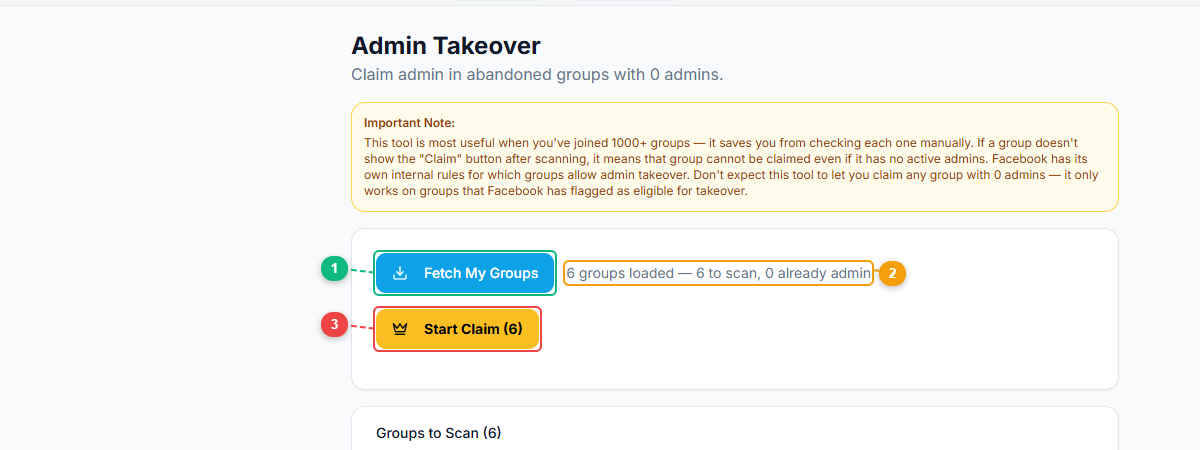
The Admin Takeover interface is designed for quick scanning. Click Fetch My Groups (1) to load all groups you belong to, review the scan status showing how many groups were loaded and how many are eligible (2), then click Start Claim (3) to begin the admin claim process on groups with no active admins. The groups list below shows each group with its member count and privacy setting for quick evaluation.
The tool operates through the FaceBot browser extension using your authenticated Facebook session. It can only perform actions that your account has permission to perform -- it does not bypass Facebook's access controls.
Making Someone an Admin#
The most common use case: you are an admin of one or more groups and need to promote another member to admin. With the tool, you:
- Select the target groups from your admin group list.
- Enter the user ID or profile URL of the person to promote.
- Choose the role (admin or moderator).
- Execute across all selected groups simultaneously.
For a single group, this saves about thirty seconds over doing it manually. For twenty groups, it saves twenty minutes and eliminates the risk of forgetting a group.
Bulk Admin Promotion#
When onboarding a new team member who needs admin access across your entire group portfolio, the tool handles the entire batch in one operation. Enter the person's profile once, select all relevant groups, and execute.
Admin Succession Planning#
The tool helps you set up admin structures that survive personnel changes:
- Add backup admins to every group so that no group has a single admin as a point of failure.
- Audit groups with only one admin and flag them for attention.
- Promote standby admins across all groups simultaneously when the primary admin transitions out.
Admin Removal#
When someone needs to lose admin access -- a departing team member, a compromised account, or an admin who is not fulfilling their responsibilities -- the tool handles demotion across all groups where that person has elevated access. This pairs with the Group Admin Manager for ongoing role oversight.
Practical Use Cases#
Agency-Client Handoffs#
Social media agencies frequently manage Facebook groups on behalf of clients. When the engagement ends, the agency needs to transfer admin control back to the client and remove its own team members' access. This often involves:
- Promoting the client's designated person to admin in every group.
- Demoting or removing all agency staff from admin and moderator roles.
- Verifying that no agency accounts retain elevated access.
Done manually, this is a tedious process that is easy to do incompletely -- leaving a former agency employee with admin access to a client's group is a real liability. Admin Takeover handles the full transition systematically.
Team Transitions#
When a community manager leaves a company, their replacement needs admin access to every group the departing person managed. The departing person needs their access revoked. This two-step transition (promote new, demote old) across multiple groups is exactly what the tool is designed for.
Recovering Abandoned Groups#
Groups where the only admin has gone inactive present a specific challenge. If you are a moderator or active member of such a group, Facebook may allow you to request admin status after a sufficient period of admin inactivity. Admin Takeover can help you identify groups where this claim path is available and guide you through the process.
This is relevant for businesses that created groups under an employee's personal account. When that employee leaves and their account goes inactive, the business can lose control of a community asset with thousands of members.
Multi-Group Restructuring#
Sometimes organizational changes require a wholesale restructuring of admin roles. A company might consolidate several groups under a single admin team, or split one group's admin responsibilities among department-specific admins. These restructuring operations involve many simultaneous role changes -- exactly the scenario where manual execution invites errors.
Risks and Ethical Considerations#
Admin access is power, and this tool makes it easier to exercise that power at scale. That creates responsibilities worth addressing directly.
Only Use on Groups You Legitimately Control#
Admin Takeover does not bypass Facebook's permission system. You can only promote or demote users in groups where you are already an admin. However, the ease of bulk operations means you should be especially deliberate about which groups you include in any batch action.
Before executing a bulk admin change, verify:
- You have the authority to make this change (from the group's actual owner or stakeholders).
- The person being promoted understands and accepts the responsibility.
- The person being demoted has been informed (unless the demotion is for security reasons requiring immediate action).
The Inactive Admin Question#
Claiming admin status in a group with an absent admin is a gray area. Facebook allows it under certain conditions, but "allowed by the platform" and "appropriate" are not always the same thing. Consider whether the original admin might return, whether the group's members would support the transition, and whether your intention is to serve the community or simply acquire an asset.
Document All Admin Changes#
Every admin role change is logged in Facebook's group activity log. Beyond that, maintain your own record of who was given or revoked access, when, and why. This documentation is essential for resolving disputes, complying with organizational policies, and conducting access audits.
🚀 Ready to try Admin Takeover?
Transfer or claim admin roles in groups
Try it Free Now — 24h Gold, 70+ Tools →Best Practices for Admin Transitions#
Never Leave a Group with a Single Admin#
A group with one admin is one disabled account or one inactive period away from being orphaned. Always ensure at least two trusted people have admin access to every group that matters to you. The complete guide to managing groups at scale covers this principle in more depth.
Separate Personal and Business Admin Accounts#
If you manage groups as part of a business, consider using a dedicated Facebook account for admin duties rather than your personal account. This prevents business group access from being tied to an individual's personal account lifecycle.
Transition Before the Crisis#
The worst time to figure out admin succession is after the current admin is already gone. Establish backup admins and documented transition procedures before they are needed. Admin Takeover makes this easy -- adding a backup admin to every group takes minutes.
Verify After Every Batch Change#
After any bulk admin operation, verify the results by checking the admin list of a sample of affected groups. Confirm that the intended changes were applied and that no unintended changes occurred. The tool provides verification as part of the workflow, but independent spot-checks are good practice.
Limitations#
- Cannot override Facebook's permissions. If you are not an admin of a group, you cannot use this tool to gain admin access. The tool operates within your existing permission scope.
- Cannot transfer the "group creator" role. Facebook does not allow the creator designation to be explicitly transferred. Creator status only changes when the current creator leaves the group.
- Inactive admin claims are not guaranteed. Facebook evaluates admin claim requests on a case-by-case basis. Meeting the criteria (admin inactive 28+ days, you are an active member) improves your chances but does not guarantee approval.
- Rate limits apply. Bulk role changes are paced to avoid Facebook's rate-limiting. Very large operations (hundreds of role changes) may take time to complete.
- Requires the target user to be a group member. You cannot promote someone to admin or moderator if they are not already a member of the group. They must join first.
Frequently Asked Questions#
Can I use Admin Takeover to become the admin of any Facebook group?#
No. The tool can only promote you to admin in groups where an existing admin initiates the promotion, or in groups where Facebook's inactive admin claim process is available. It does not bypass access controls.
What happens to a group if all admins leave?#
If every admin leaves a group, Facebook may offer the admin role to the longest-serving moderator. If there are no moderators, it may offer the role to the longest-serving member. If no one claims the role within a certain period, the group essentially becomes orphaned -- it continues to exist, but no one can manage settings or moderation.
Can I promote someone to admin without their consent?#
Technically, yes -- admin promotion does not require the promoted person's approval on Facebook. However, promoting someone without their knowledge or consent is poor practice. Always inform someone before giving them admin responsibilities.
Is it possible to take back admin access after giving it?#
If you are still an admin, you can demote another admin back to moderator or member. However, if the other admin demotes you first, you lose the ability to manage their role. Admin access is mutual -- any admin can demote any other admin. This is why trust matters in admin appointments.
How does this differ from the Group Admin Manager tool?#
Admin Takeover focuses specifically on role transitions -- making someone an admin, removing admin access, and handling succession scenarios. Group Admin Manager provides the ongoing oversight dashboard -- seeing who has what access across all your groups, auditing permissions, and monitoring admin activity. They complement each other: Admin Takeover for changes, Admin Manager for visibility.
Conclusion#
Admin transitions are an unavoidable part of managing Facebook groups, especially when you operate multiple groups or work within a team. The native Facebook interface handles one group at a time and provides no bulk operations, no cross-group visibility, and no streamlined succession workflow.
FaceBot's Admin Takeover tool brings structure to a process that is otherwise manual and fragmented. Whether you are onboarding a new team member, offboarding a departing one, recovering an abandoned group, or restructuring admin responsibilities across your portfolio, the tool handles the mechanics reliably and at scale.
The key is to use it thoughtfully. Admin access is not something to distribute casually or revoke without communication. The tool makes admin changes easy -- your job is to ensure those changes are also right.
Access Admin Takeover in your FaceBot dashboard.